Facebook archive guide
Export your Facebook history as a usable JSON archive
Meta lets you export a copy of selected Facebook information from Accounts Centre. Mycopy imports that archive; it does not claim automatic access to your full personal Facebook history.
Verified against provider guidance · Updated 16 August 2026What you will finish with
A private Facebook archive you control
- Selected profile history in machine-readable JSON
- Original photos and videos preserved inside the ZIP
- The untouched Meta ZIP ready for Mycopy import when it is 512 MB or smaller
- Step 1
Open Accounts Centre
In Facebook, select your profile picture, then Settings & privacy → Settings. Open Accounts Centre, then Your information and permissions. On mobile, the same labels may sit lower in the menu.
- Step 2
Create a new export
Choose Export your information, then Create export. If Meta shows earlier exports, do not reuse one unless its date range and selected categories are exactly what you need.
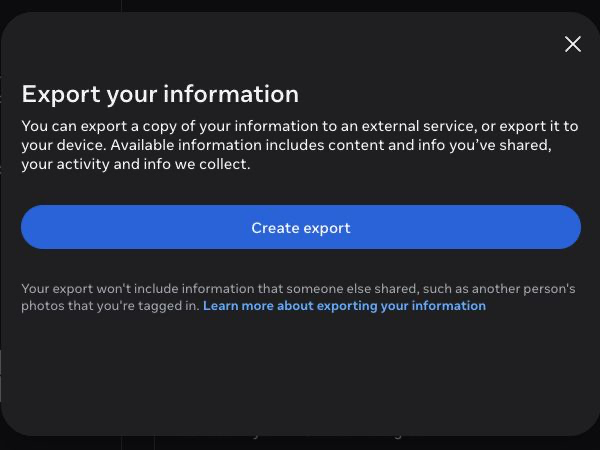
Create a fresh export from Accounts Centre so you control its profile, date range, and format. Meta Accounts Centre · August 2026 - Step 3
Select the correct Facebook profile
Choose the profile you want to preserve, then continue. Accounts Centre can contain Facebook and Instagram profiles together, so check the profile name and service icon before moving on.
- Step 4
Choose Export to device
Select Export to device. This creates downloadable files for your own custody. A provider-to-provider transfer is a different workflow and may not include the same categories.
- Step 5
Select the information to preserve
Choose All available information for the broadest copy, or select categories intentionally. For a personal history, check at least posts, photos and videos, comments, profile information, and messages when Meta offers them. Activity logs can take longer to prepare.
- Step 6
Set All time, JSON, and media quality
Choose All time for the broadest history. Set the format to JSON so Mycopy can read supported records. High media quality preserves better files but can make the export much larger. The current Mycopy upload limit is 512 MB, so use a smaller category/date export for import or keep a larger full-quality ZIP as your local master copy.
- Step 7
Start the export
Confirm the notification email, then select Start export. Meta may ask you to re-enter your password or complete another security check. Preparation time depends on the categories, date range, and media volume.
- Step 8
Download within four days
Return to Export your information → Available downloads when Meta notifies you. Meta says completed exports remain available for four days. Download every part, keep the original ZIP unopened for Mycopy, and store a second encrypted copy.
- Step 9
Verify before you trust it
Import a copy into Mycopy and check the profile, covered dates, item counts, and one older supported record. In this MVP, media remains inside the preserved original ZIP rather than appearing in the archive list. Keep the Meta ZIP after import so you still have the provider-issued source archive.
Why this is an import
Facebook’s public consumer tools create archives or transfer selected categories to listed services. They do not expose a general API that lets Mycopy continuously copy a person’s complete Facebook and Messenger history.
Provider reference: Meta Help Centre — export a copy of your Facebook information.
Want an easier copy?