Gmail backup guide
How to keep an automatic, read-only copy of Gmail
A reliable Gmail backup starts with least-privilege access, a complete first copy, and incremental checks that can recover from expired history checkpoints.
Verified against provider guidance · Updated 16 August 2026What you will finish with
An independent Gmail copy
- Mail and its embedded attachments copied without send or delete access
- A dashboard showing the number of preserved items and last verification
- A portable ZIP you can keep outside Mycopy
- Step 1
Create your Mycopy account
Register, verify that you can sign in, and open Home. Your connected source and its archive are always tied to this Mycopy account.
- Step 2
Choose Gmail as your first source
In Choose your first source, select Connect Gmail. When Google connection keys are not yet enabled, Mycopy shows Setup guide instead.
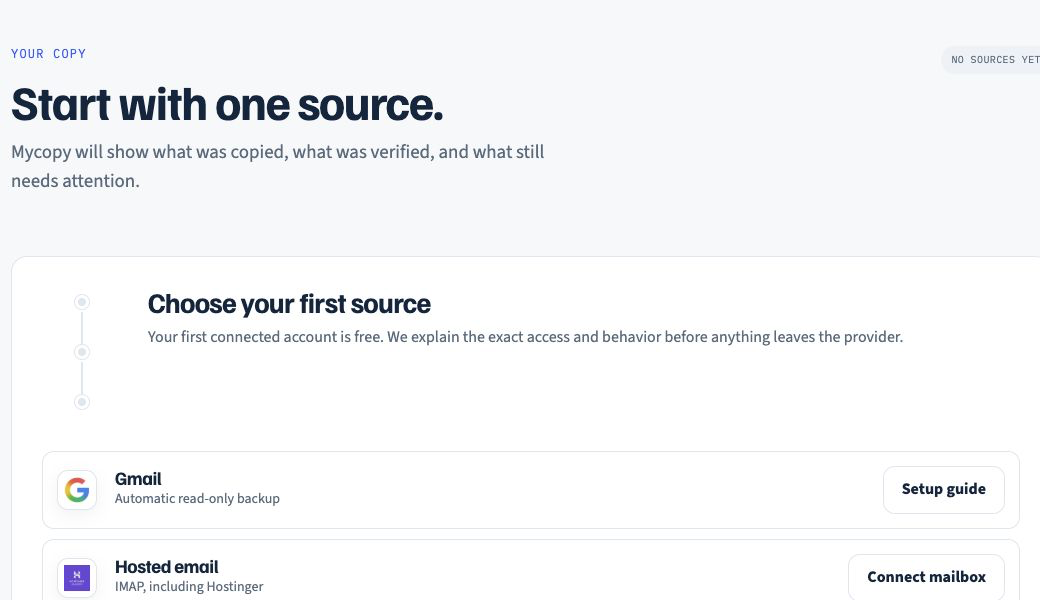
Choose Gmail for an automatic read-only copy. The action reads “Connect Gmail” when the Google connection is enabled. Mycopy interface · August 2026 - Step 3
Check the Google permission
Sign in to the correct Google account. Mycopy requests your basic account identity, offline access for scheduled backups, and read-only Gmail access. That permission still allows Mycopy to view all Gmail messages and settings. Stop if the screen asks to send, modify, or delete mail.
- Step 4
Approve and return to Mycopy
Select Allow. Google returns you to Mycopy, where the first historical backup is queued. Mycopy stores connection tokens encrypted and never receives your Google password.
- Step 5
Let the first copy finish
You can close the page while messages are copied in resumable batches. The current Gmail connection preserves messages returned by Gmail’s standard message list, which excludes Spam and Trash. Later runs add new messages since the last history checkpoint; if that checkpoint expires, Mycopy starts a full mailbox sync.
- Step 6
Read the custody status
On Home, check the source status, total preserved item count, and last verified time. Compare the total with what you reasonably expect from Gmail. The MVP does not yet show per-folder or attachment counts, so use a local export for a deeper check.
- Step 7
Download and inspect a local copy
Select Download local copy. Open the ZIP, then inspect
manifest.jsonand an EML file inside theitemsfolder with a desktop mail app. A successful recovery test is stronger evidence than a status label.
Disconnecting Google later
Revoking Mycopy in your Google Account stops future Gmail access. It does not delete mail already preserved in Mycopy; downloading or deleting that stored copy is a separate action.
Prefer a manual copy?
Google Takeout creates an MBOX snapshot without connecting Mycopy to Gmail. Follow the Google Takeout guide and keep the original ZIP as your provider-issued copy.
Provider references: Google Gmail authorization scopes and Gmail export details.
Want an easier copy?