Hosted email guide
Back up the mailbox behind Hostinger or Roundcube
Roundcube is the webmail screen, not usually the email host. To create an automatic copy, connect the underlying mailbox using its secure IMAP settings.
Verified against provider guidance · Updated 16 August 2026What you will finish with
A read-only copy of your IMAP mailbox
- Full RFC822 messages preserved as EML
- Selectable IMAP folders copied by the automatic connection
- A manual Roundcube fallback when automatic access is unavailable
- Step 1
Identify the mailbox provider
Roundcube is usually only the screen used to read mail. The server may be Hostinger Email, Titan, cPanel, or another provider. Check your hosting panel or ask the mailbox administrator for the incoming IMAP details; do not use the Roundcube website address as the server name.
- Step 2
Find the secure IMAP settings
In Hostinger hPanel, open Emails, select Manage beside the domain, then open Connect Apps & Devices. Current Hostinger Email settings use
imap.hostinger.com, SSL, port993, and your full email address as the username. Titan and cPanel can show different hosts, so copy the values from your own panel.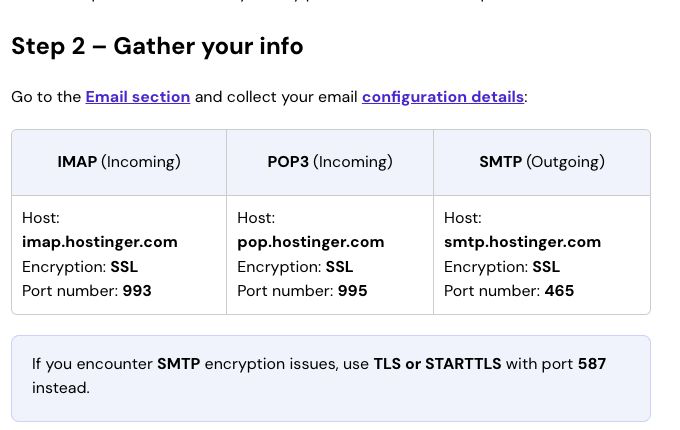
Copy the incoming IMAP values. Mycopy does not need the outgoing SMTP settings. Hostinger Help Centre · August 2026 - Step 3
Create an app password when available
If your provider supports two-step verification or app-specific passwords, generate one for Mycopy and keep your main password private. If it does not, use the mailbox password and rotate it if you later disconnect the source. Mycopy never needs an SMTP password.
- Step 4
Enter the mailbox details in Mycopy
From Mycopy Home, choose Hosted email → Connect mailbox. Add a label, the exact IMAP server, your full email address or provider username, and the app password. Port 993 is fixed because Mycopy only accepts IMAP over verified TLS. The encrypted mailbox credential remains stored so scheduled copies can continue; use a revocable app password whenever possible.
- Step 5
Verify and start copying
Select Verify and start copying. Mycopy verifies the TLS certificate and opens the inbox in read-only mode before saving the source. It rejects unsafe server targets and does not offer an “ignore certificate” switch. If connection fails, re-check the host, username, password, and whether IMAP access is enabled.
- Step 6
Check the first result
After the first run, Home shows the aggregate preserved item count and last verified time. Compare recent messages shown in Mycopy with Inbox, Sent, Archive, and a custom folder in webmail. The MVP does not yet show per-folder or attachment counts, so use a local export for a deeper check.
- Step 7
Test the portable copy
Select Download local copy. Open the ZIP and use
manifest.jsonto confirm the source. Open an EML file from theitemsfolder in a desktop mail app and check its content.
Manual Roundcube download
For one message, select More → Download (.eml). For several messages, select them and download the resulting ZIP. To copy a whole folder, select the folder, open the gear or Folder actions menu, and choose Download folder. Repeat for Inbox, Sent, Archive, and every custom folder, then keep all ZIP files in one dated folder. This preserves mail, not Roundcube’s separate address book or interface settings.
Large mailbox fallback with Thunderbird
Add the same IMAP account to Thunderbird and allow every folder to finish synchronizing. Then use Tools → Export to back up the Thunderbird profile. Mozilla notes that the built-in ZIP export is limited to profiles of 2 GB or less; for a larger profile, close Thunderbird and copy the profile folder manually.
Provider references: Hostinger connection settings, Roundcube message export, and Thunderbird profile export.
Want an easier copy?