Google Takeout guide
Download a copy of Gmail and your Google data
Google Takeout creates a provider-authoritative archive you can keep locally or import into a personal archive tool. Downloading a copy does not delete data from Google.
Verified against provider guidance · Updated 16 August 2026What you will finish with
A provider-issued Gmail snapshot
- The original Takeout ZIP or ZIP parts
- Gmail messages in MBOX format, including attachments
- A second verified copy stored somewhere secure
- Step 1
Open the correct Google account
On a desktop browser, visit takeout.google.com. Check the profile picture in the top-right corner before continuing; the export only contains data from the signed-in account.
- Step 2
Deselect all products
Google selects many products by default. Choose Deselect all so the export stays focused and does not unexpectedly include Drive documents, location history, or other private data.
- Step 3
Select Mail
Scroll to Mail and tick its checkbox. Google’s Mail export contains message content, headers, attachments, labels, and user settings. Encrypted messages stay encrypted.
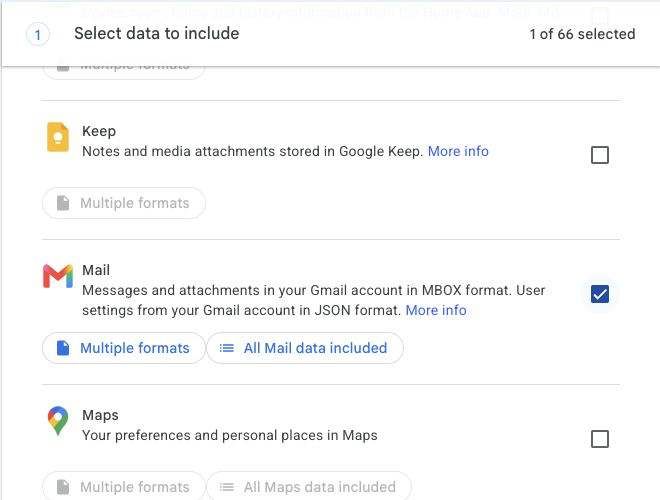
Select Mail, then review “All Mail data included” before moving on. Google Takeout · August 2026 - Step 4
Decide whether to include every label
Select All Mail data included. For the safest full backup, leave Include all messages in Mail enabled. If you choose labels manually, remember that Gmail categories and custom labels can overlap, so an incomplete selection may omit mail. Google preserves label information in the
X-Gmail-Labelsheader inside the MBOX file. - Step 5
Choose delivery and frequency
Select Next step. Send download link via email is the simplest delivery method. Choose Export once for a point-in-time backup; Google may also offer recurring exports, which create a new archive on the shown schedule rather than continuously syncing Gmail.
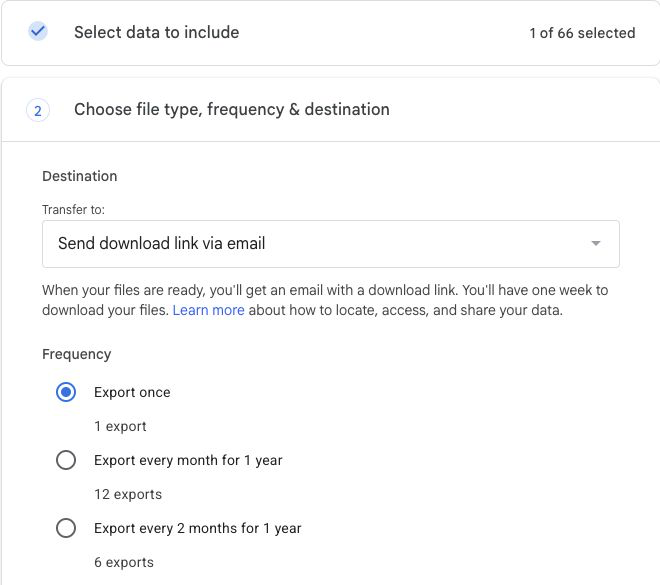
Export once is the clearest choice for a manual backup you can date and verify. Google Takeout · August 2026 - Step 6
Choose ZIP and a practical file size
Use .zip unless you specifically need TGZ. Pick an archive size that fits your storage and connection. If your data is larger, Google splits it into numbered ZIP files; every part belongs to the same backup and must be downloaded.
- Step 7
Create and download the export
Select Create export. Preparation can take from minutes to days. When Google emails you, return to Takeout, complete any identity check, and download every part promptly. Do not delete the original ZIP files after extracting them.
- Step 8
Verify and store your copy
Open
archive_browser.htmlif Google includes it, locate the Mail folder, and confirm that the MBOX file has a realistic size and current modified date. Import the MBOX into a compatible desktop mail app, open an old message and attachment, then keep another encrypted copy on a separate disk or trusted storage service.
Mycopy compatibility
The current Mycopy importer accepts JSON files inside a ZIP. Gmail Takeout mail is MBOX, so keep this archive locally for now; direct MBOX import is an upcoming feature.
Keep the whole set together
A Takeout ZIP is a snapshot, not a live sync. If Google creates several parts, store them in one dated folder and repeat the export later when you need a newer copy.
Provider reference: Google Account Help — download your data.
Want an easier copy?